> ## Documentation Index
> Fetch the complete documentation index at: https://docs.assetinfinity.ai/llms.txt
> Use this file to discover all available pages before exploring further.
# Signing in on the handset
> Enrolling a device, choosing the passcode, and what happens every time the app opens.
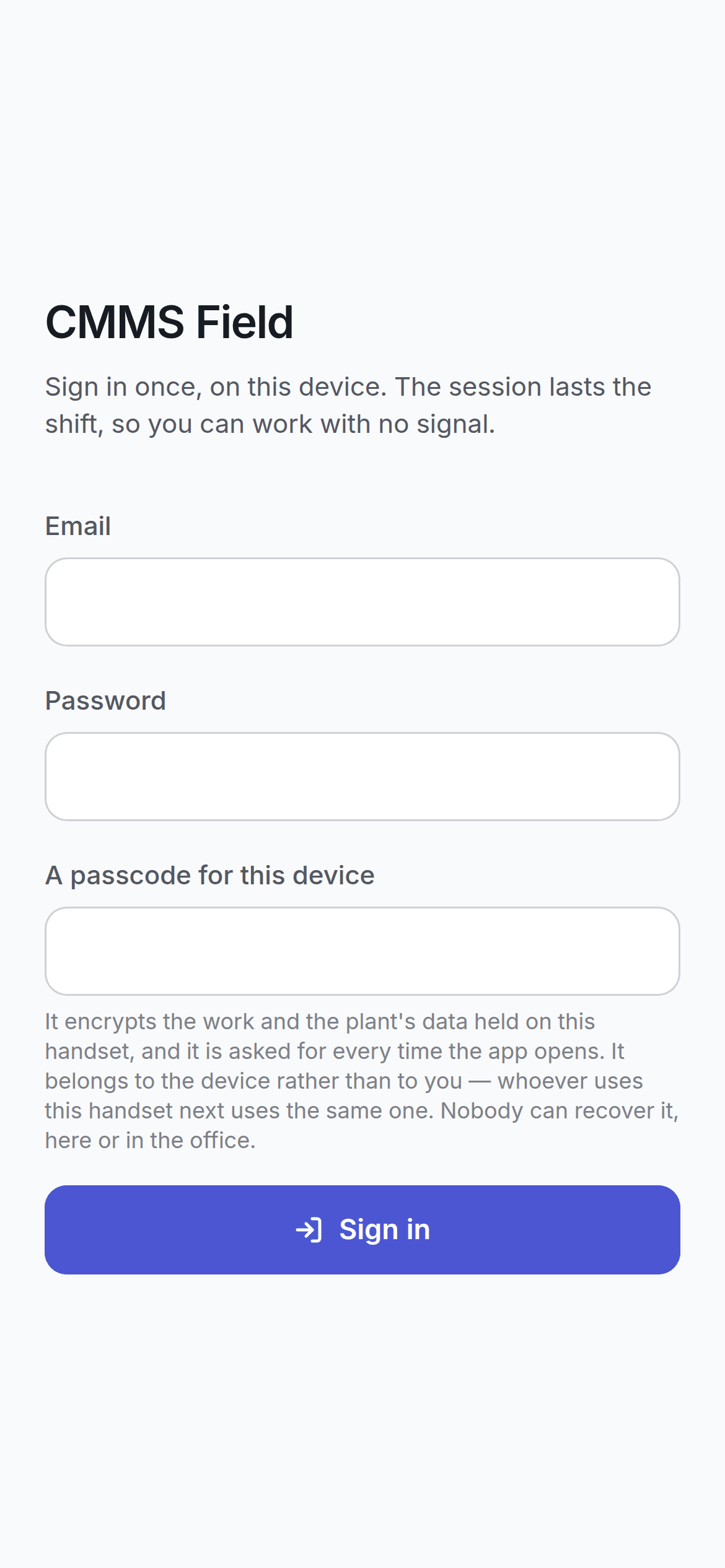
Signing in on a handset does more than it does on a desktop: it **enrols the device** and creates an
encrypted database on it.
 ## First time on a device
The same ones you use for the main app.
At least four characters. This is asked for only on a device that has not been set up yet.
The app builds its encrypted database and downloads the work assigned to you. This takes a
while — it is doing real cryptographic work — and only happens once per device.
## The passcode
Three things about it surprise people, so they are worth saying plainly.
**It belongs to the handset, not to you.** Whoever uses this handset next uses the same passcode.
It is not your personal password.
**Nobody can recover it.** Not you, not your supervisor, not the office. A passcode that could be
reset would be encryption whose key is optional.
**It encrypts the work and the plant's data held on this handset.** That is what it is for. A
phone left in a canteen does not hand over your plant's asset register.
## Every time the app opens
After the first time, opening the app asks for the passcode.
## First time on a device
The same ones you use for the main app.
At least four characters. This is asked for only on a device that has not been set up yet.
The app builds its encrypted database and downloads the work assigned to you. This takes a
while — it is doing real cryptographic work — and only happens once per device.
## The passcode
Three things about it surprise people, so they are worth saying plainly.
**It belongs to the handset, not to you.** Whoever uses this handset next uses the same passcode.
It is not your personal password.
**Nobody can recover it.** Not you, not your supervisor, not the office. A passcode that could be
reset would be encryption whose key is optional.
**It encrypts the work and the plant's data held on this handset.** That is what it is for. A
phone left in a canteen does not hand over your plant's asset register.
## Every time the app opens
After the first time, opening the app asks for the passcode.
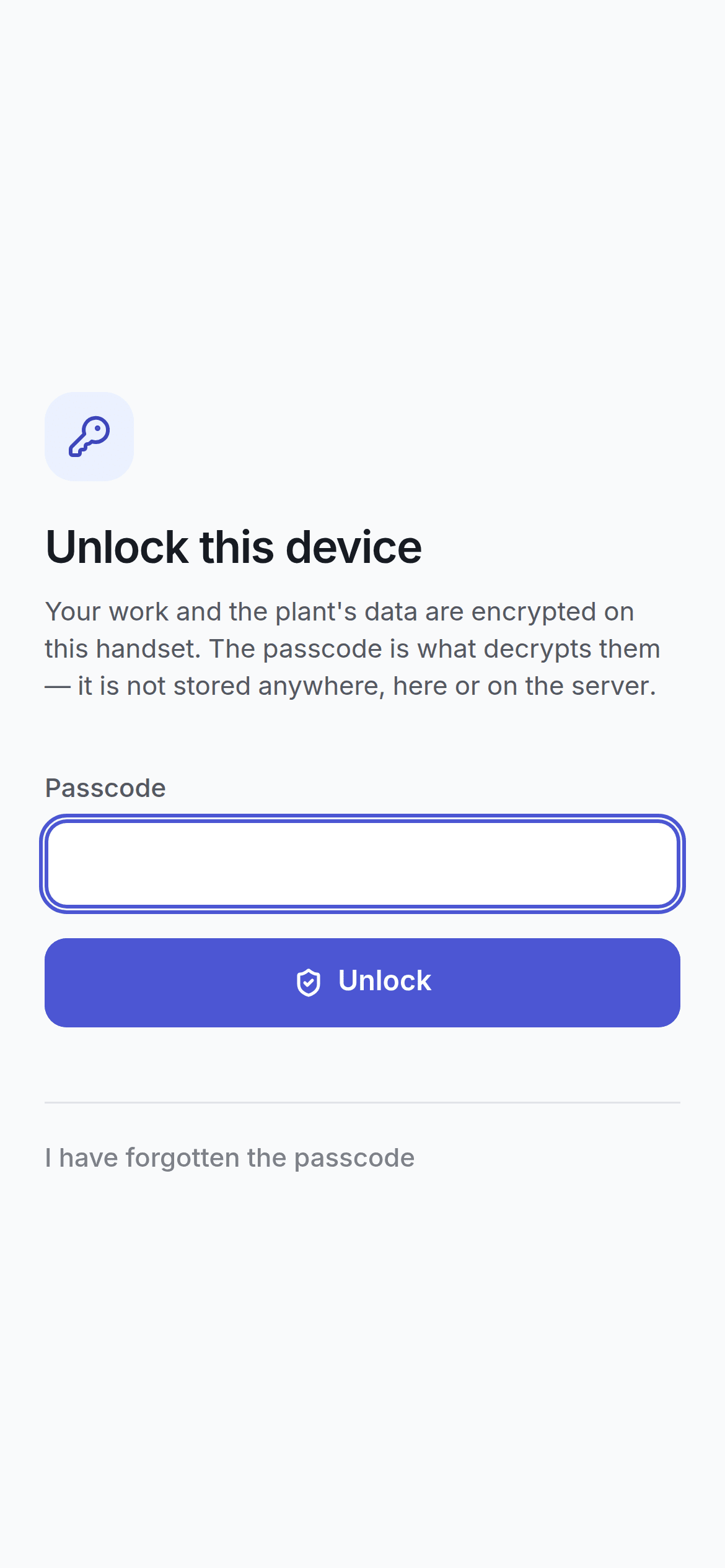 The passcode is what decrypts the local database, so there is no way past it. What the screen offers
instead is the honest exit: **start again**, which erases the local copy and signs in fresh.
Starting again costs any work on the handset that has not reached the server yet. The app says so
and asks twice.
## Signing out
The passcode is what decrypts the local database, so there is no way past it. What the screen offers
instead is the honest exit: **start again**, which erases the local copy and signs in fresh.
Starting again costs any work on the handset that has not reached the server yet. The app says so
and asks twice.
## Signing out
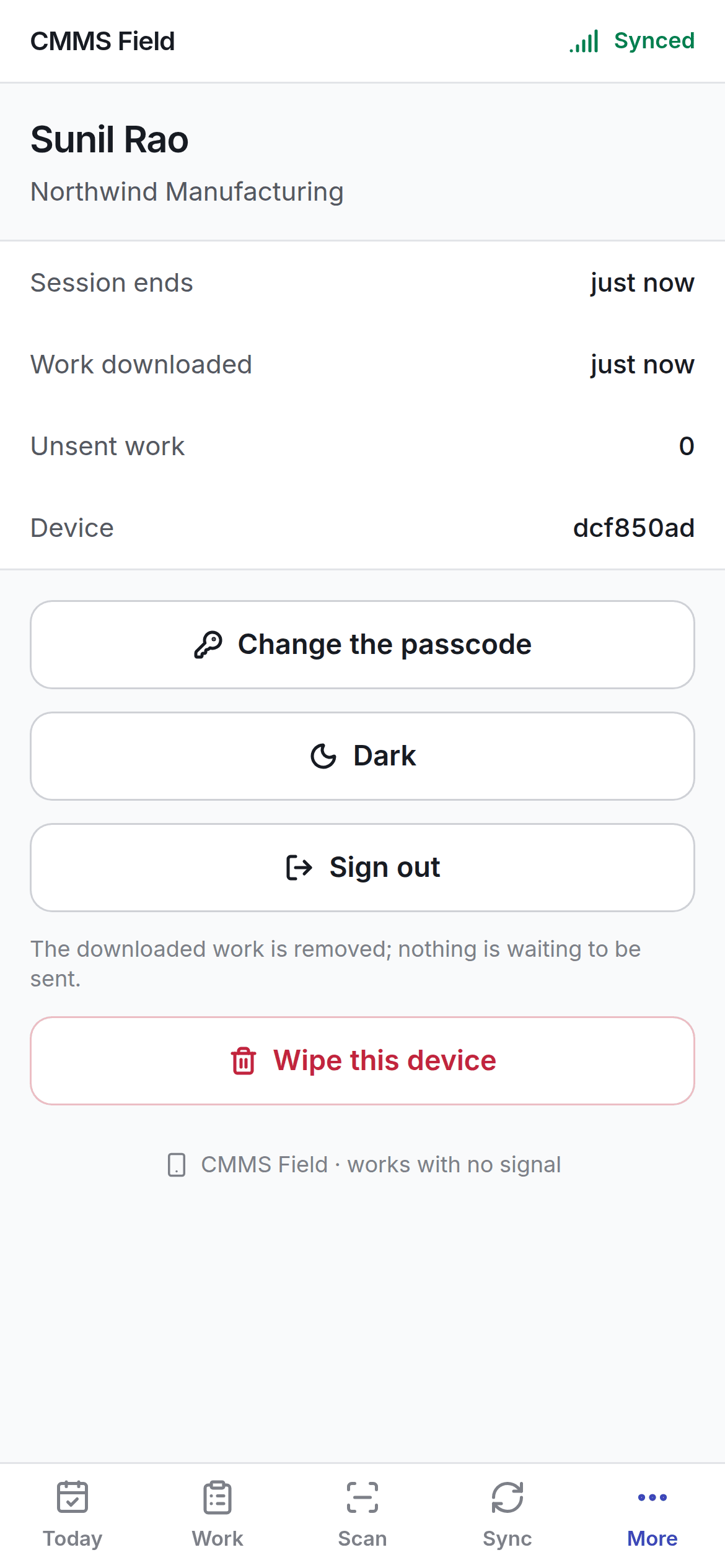 **More → Sign out** forgets your session and the downloaded records — but **not the queue**.
That is deliberate. A shared handset changing hands between shifts must not take the previous
technician's unsent afternoon with it. Those queued operations already name the person who did them,
and the server applies them as that person, not as whoever signs in next.
## Wiping the device
**More → Wipe everything** is offered separately, worded plainly, and confirmed. It is the right
answer for a handset leaving the site and the wrong one for a technician finishing a shift.
## If the device has been revoked
An administrator can revoke a lost handset. It can no longer sync, and its sessions end — but the
work already queued on it is kept on the server side of the record rather than discarded. See
[the Sync Center](/field/sync-center).
## Related topics
- [Ways to sign in](/setup/sign-in-methods.md)
- [The field app](/field/overview.md)
- [Creating an organisation](/setup/sign-up.md)
- [The Sync Center](/field/sync-center.md)
- [Working offline](/field/offline-and-sync.md)
**More → Sign out** forgets your session and the downloaded records — but **not the queue**.
That is deliberate. A shared handset changing hands between shifts must not take the previous
technician's unsent afternoon with it. Those queued operations already name the person who did them,
and the server applies them as that person, not as whoever signs in next.
## Wiping the device
**More → Wipe everything** is offered separately, worded plainly, and confirmed. It is the right
answer for a handset leaving the site and the wrong one for a technician finishing a shift.
## If the device has been revoked
An administrator can revoke a lost handset. It can no longer sync, and its sessions end — but the
work already queued on it is kept on the server side of the record rather than discarded. See
[the Sync Center](/field/sync-center).
## Related topics
- [Ways to sign in](/setup/sign-in-methods.md)
- [The field app](/field/overview.md)
- [Creating an organisation](/setup/sign-up.md)
- [The Sync Center](/field/sync-center.md)
- [Working offline](/field/offline-and-sync.md)