> ## Documentation Index
> Fetch the complete documentation index at: https://docs.assetinfinity.ai/llms.txt
> Use this file to discover all available pages before exploring further.
# Your first hour
> Sign in, learn the layout, and follow one job from a reported fault through to a closed work order.
This walks one fault through the whole system. By the end you will have triaged a request, opened a
work order, assigned it, and closed it — which is the loop the rest of the product hangs off.
Open the address your administrator gave you. Enter your email and password and click
**Sign in**.
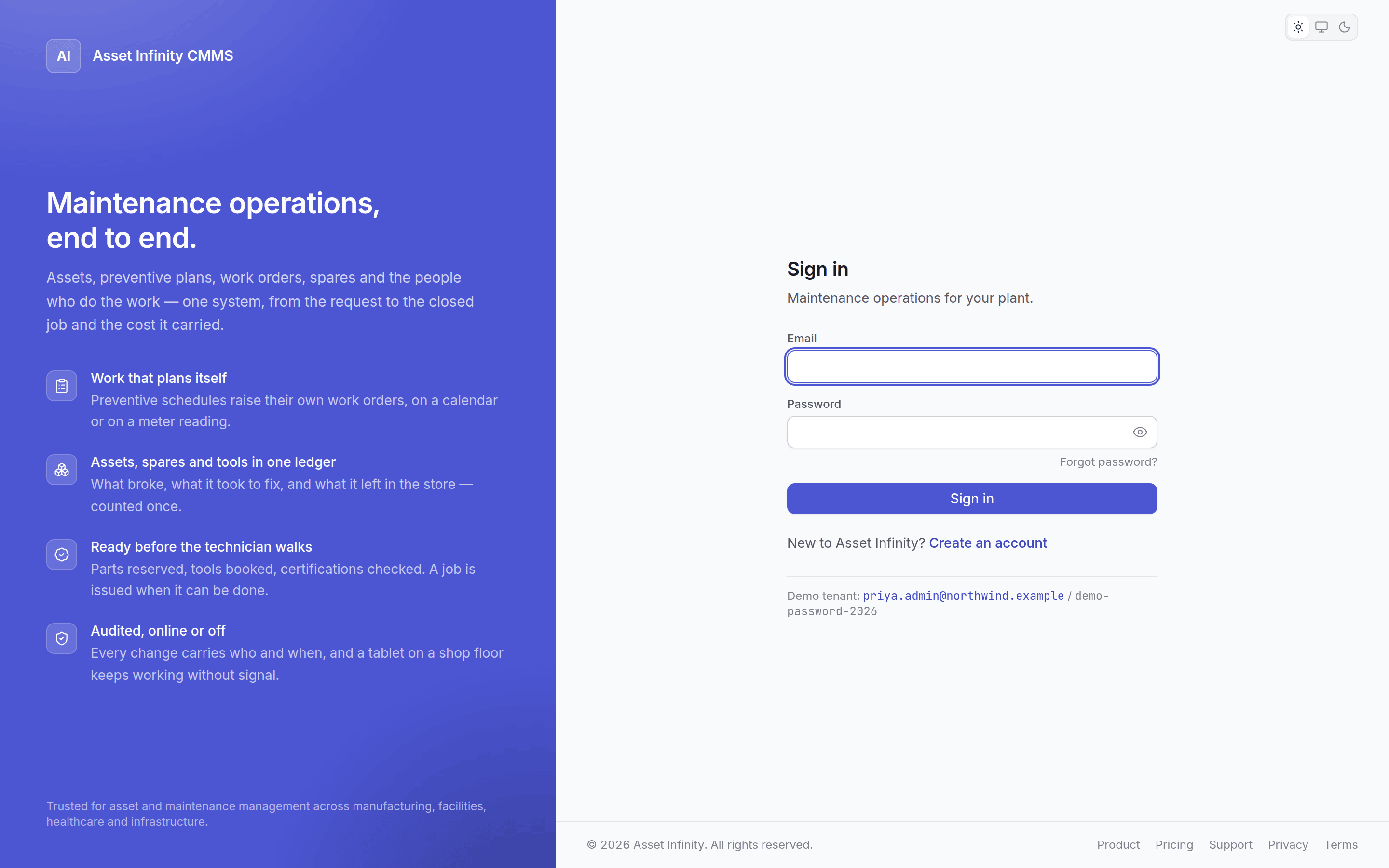 If your organisation has configured Google or Microsoft, those buttons appear here too. If it
has not, the app never mentions them. See [ways to sign in](/setup/sign-in-methods).
No account yet? If your organisation allows self-service signup you can
[create one](/setup/sign-up). Otherwise an administrator creates it for you and you will be
asked to change the password they issued on first sign-in.
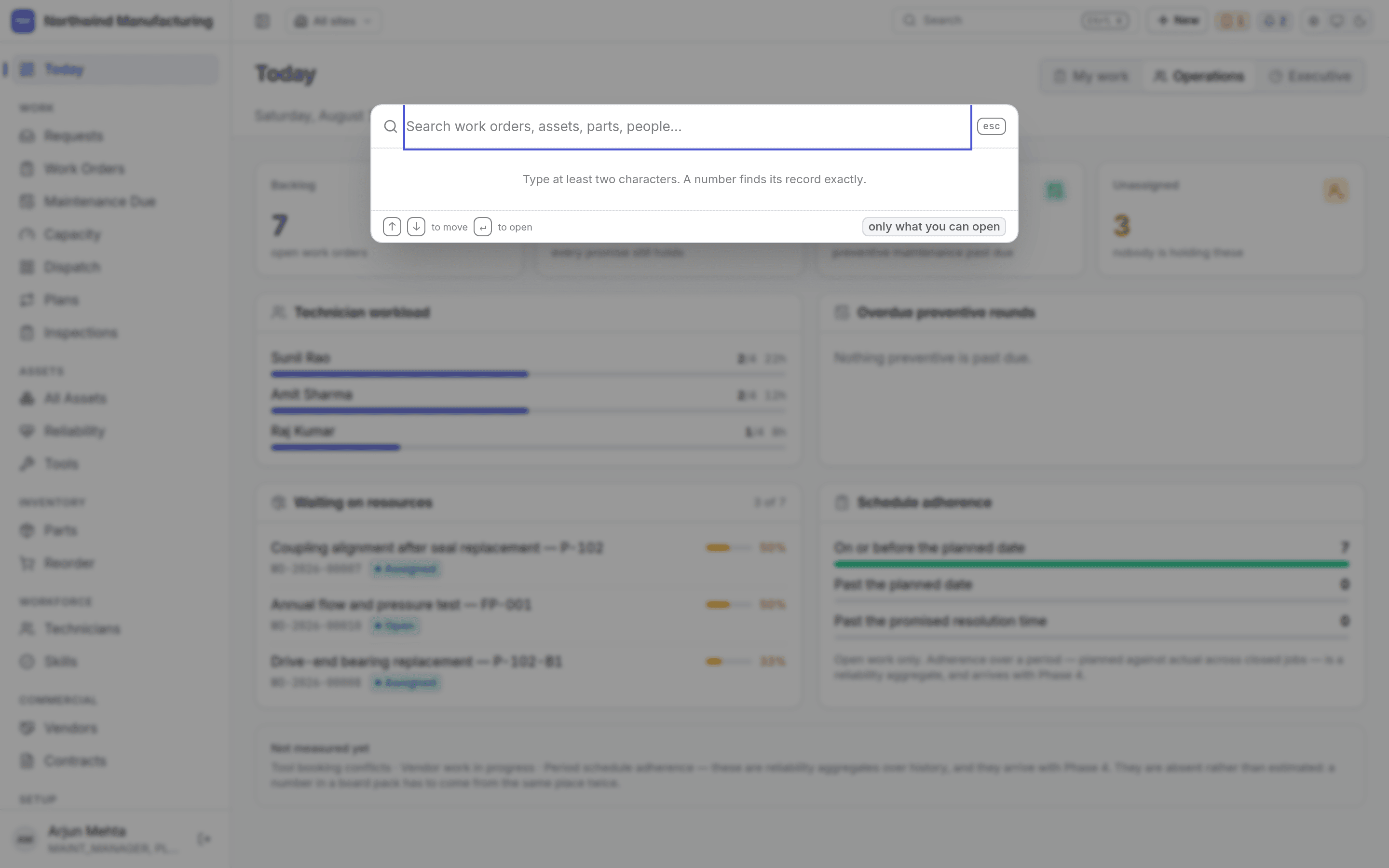
The sidebar groups screens by what you are doing: **Work**, **Assets**, **Inventory**,
**Workforce**, **Commercial** and **Setup**. The header carries search, the site switcher, the
**New** button, notifications and your account.
Press Ctrl+K (⌘+K on a Mac) to open the command
palette and jump anywhere by typing.
If your organisation has configured Google or Microsoft, those buttons appear here too. If it
has not, the app never mentions them. See [ways to sign in](/setup/sign-in-methods).
No account yet? If your organisation allows self-service signup you can
[create one](/setup/sign-up). Otherwise an administrator creates it for you and you will be
asked to change the password they issued on first sign-in.
The sidebar groups screens by what you are doing: **Work**, **Assets**, **Inventory**,
**Workforce**, **Commercial** and **Setup**. The header carries search, the site switcher, the
**New** button, notifications and your account.
Press Ctrl+K (⌘+K on a Mac) to open the command
palette and jump anywhere by typing.
 Full tour: [finding your way around](/get-started/navigating).
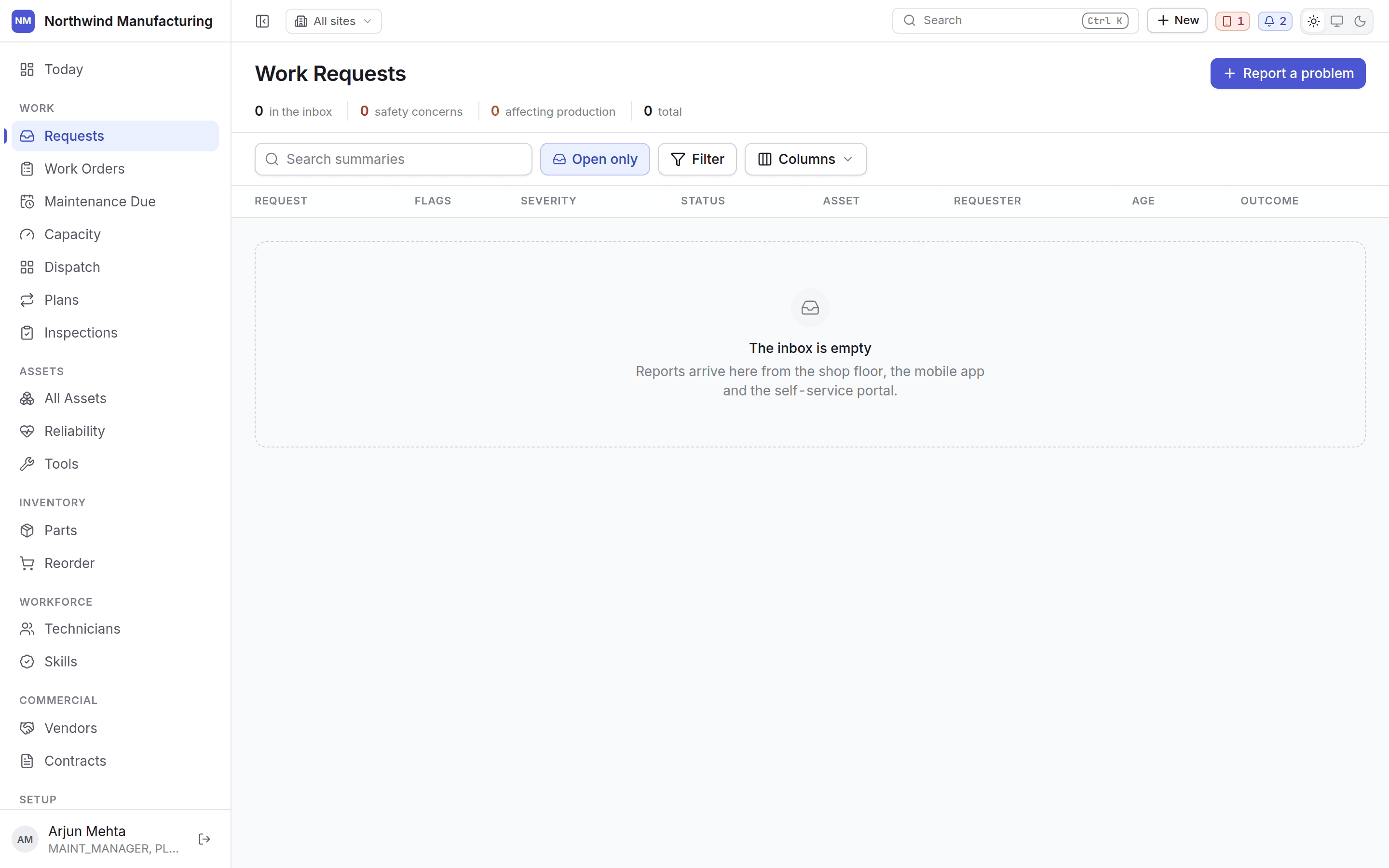
Go to **Work → Requests**. This is the inbox of things people have reported. Select one and the
request opens in a panel beside the list, so you can work down a queue without navigating back
and forth.
Full tour: [finding your way around](/get-started/navigating).
Go to **Work → Requests**. This is the inbox of things people have reported. Select one and the
request opens in a panel beside the list, so you can work down a queue without navigating back
and forth.
 A request you intend to act on becomes a job: click **Convert to work order**. One that is not
worth doing gets **Reject**. The buttons you see come from your organisation's own request
lifecycle, so a missing button means your configuration does not allow that move from here.
More: [work requests](/work/requests).
Converting lands you on the job. **Work → Work Orders** lists everything open, with views along
the top for *Unassigned*, *Due today*, *Overdue*, *SLA breached*, *Critical* and each of your
on-hold states.
A request you intend to act on becomes a job: click **Convert to work order**. One that is not
worth doing gets **Reject**. The buttons you see come from your organisation's own request
lifecycle, so a missing button means your configuration does not allow that move from here.
More: [work requests](/work/requests).
Converting lands you on the job. **Work → Work Orders** lists everything open, with views along
the top for *Unassigned*, *Due today*, *Overdue*, *SLA breached*, *Critical* and each of your
on-hold states.
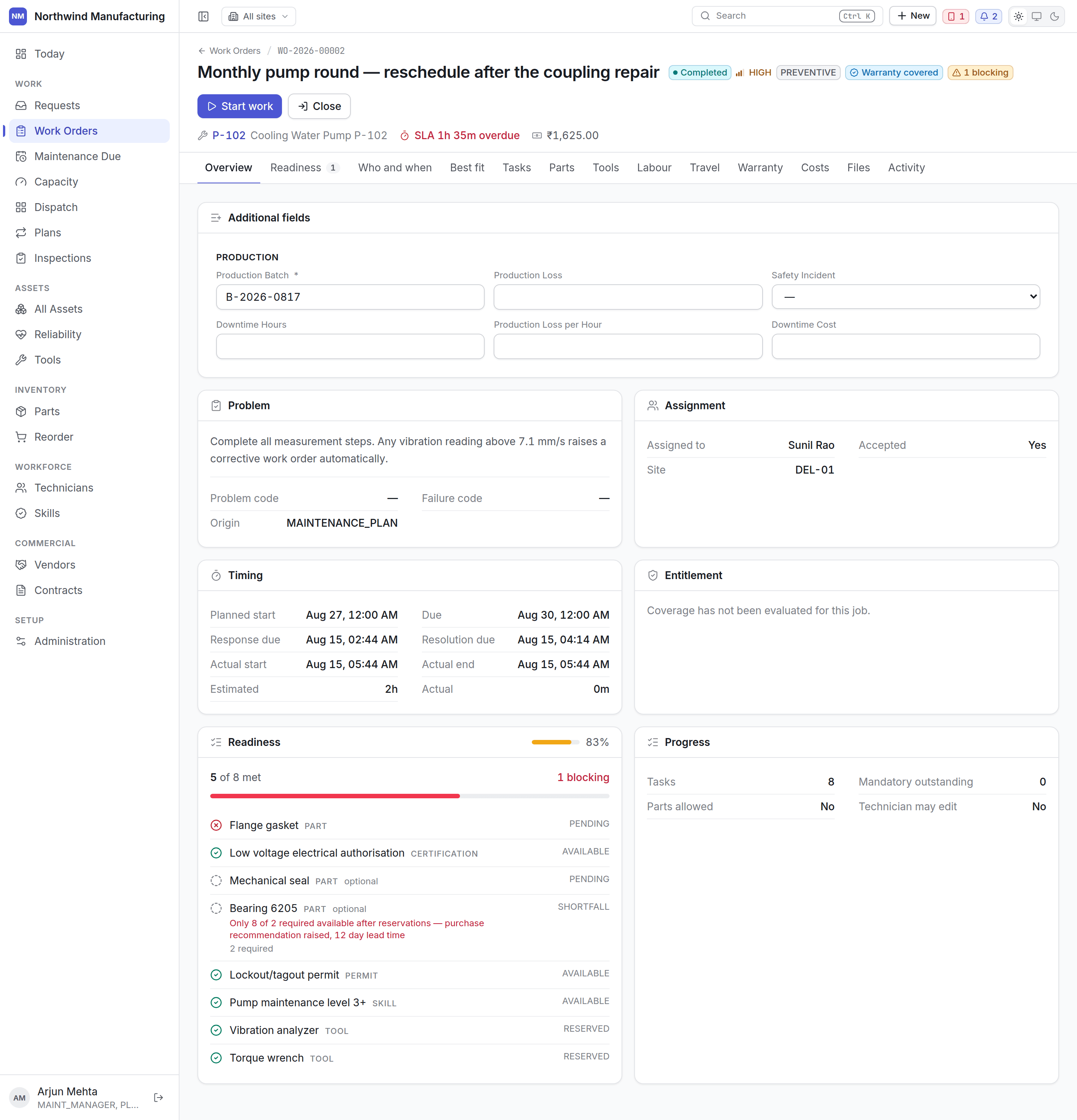
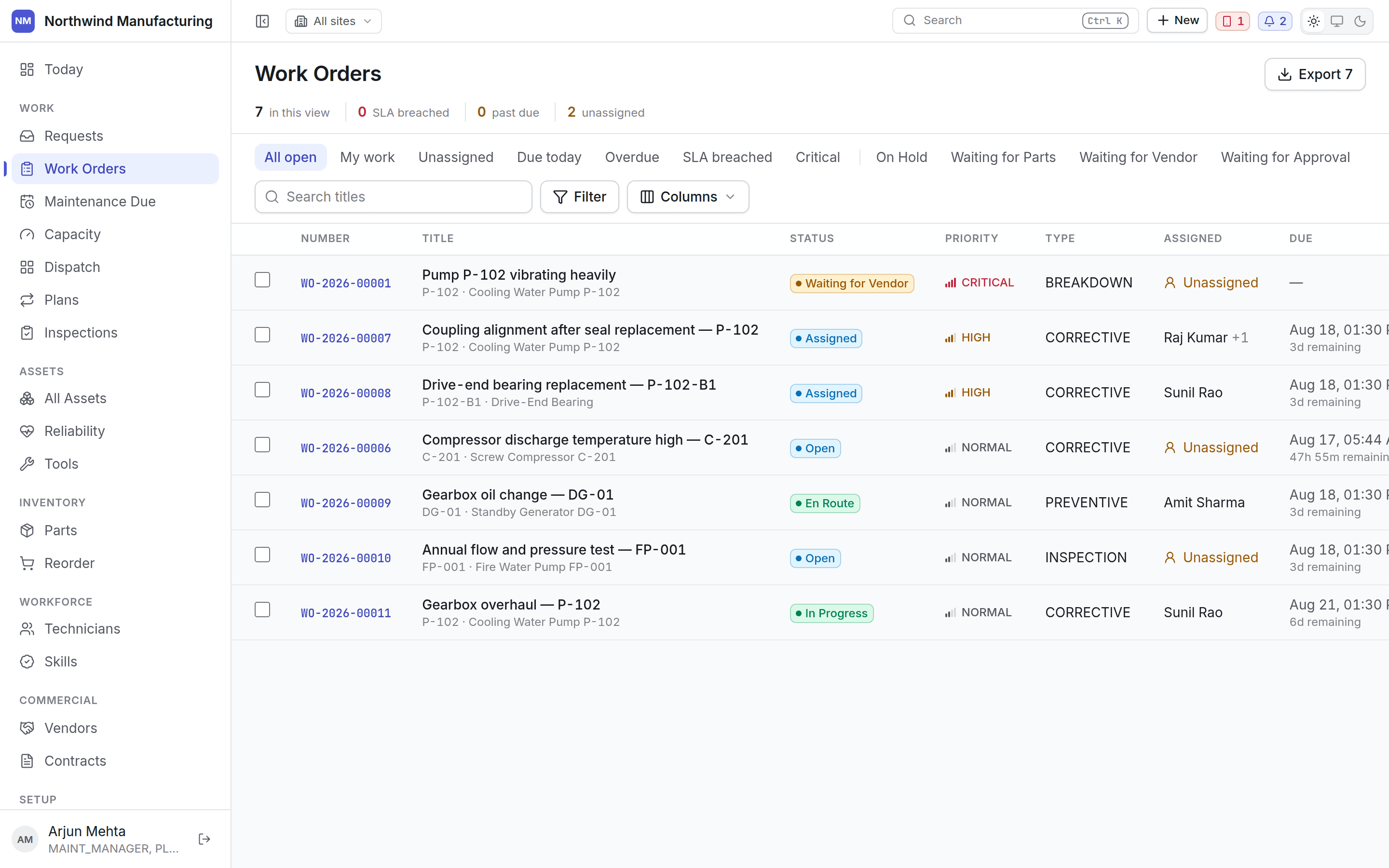 Open one and you get the whole picture — what it is, who it is on, what it needs, what it has
cost, and what has happened to it.
Open one and you get the whole picture — what it is, who it is on, what it needs, what it has
cost, and what has happened to it.
 More: [inside a work order](/work/work-order-detail).
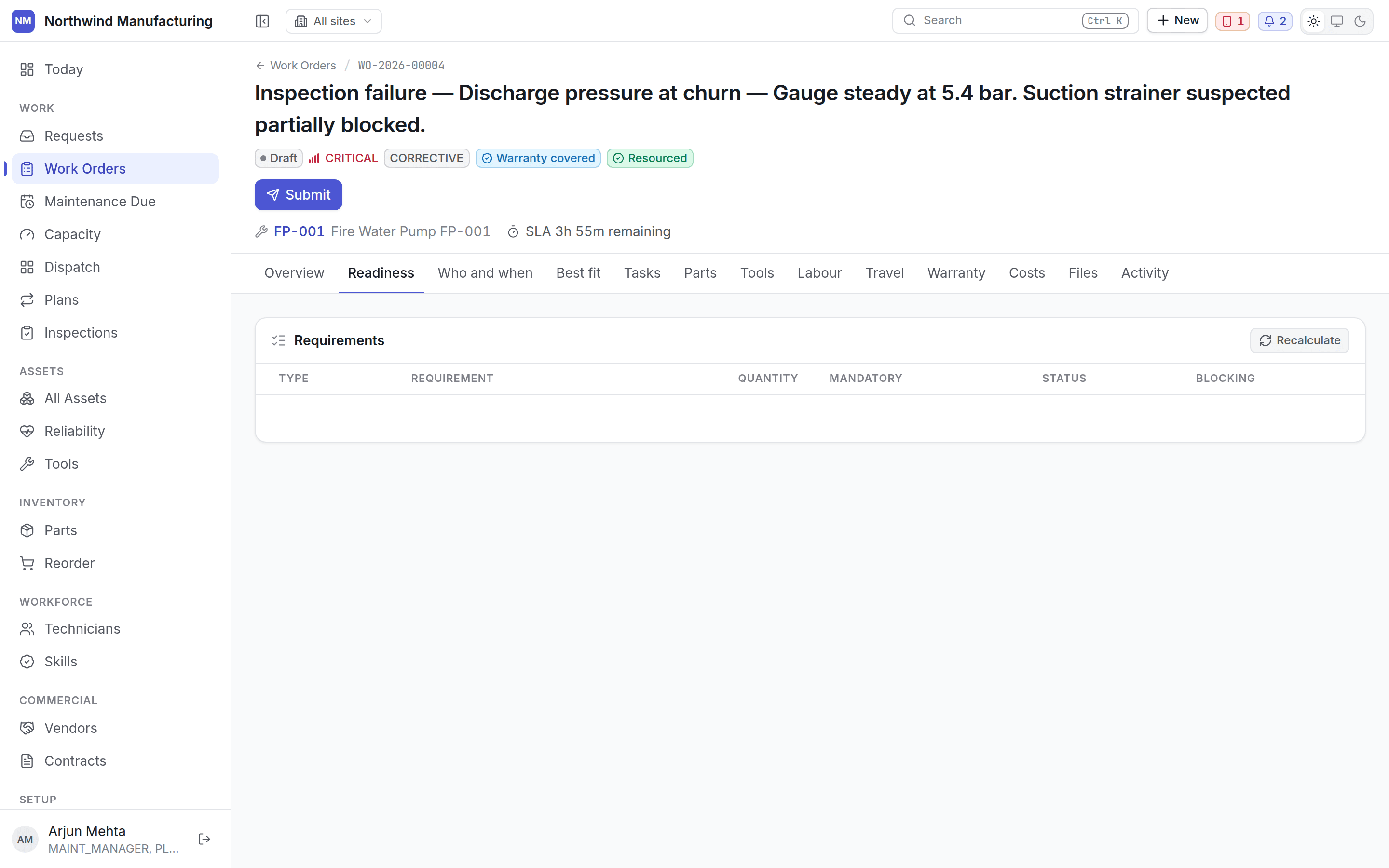
Open the **Readiness** tab. It lists what the job still needs — parts not in stock, a tool that
is out or out of calibration, a skill or certification nobody available holds, a vendor who has
not confirmed.
More: [inside a work order](/work/work-order-detail).
Open the **Readiness** tab. It lists what the job still needs — parts not in stock, a tool that
is out or out of calibration, a skill or certification nobody available holds, a vendor who has
not confirmed.
 Sending somebody to a job that is short of a part is how a shift gets wasted. Clear the
shortages first, or accept them knowingly.
Go to **Work → Dispatch**. Jobs sit in columns by state; technicians are in the rail on the
right. Drag a job onto a person.
Sending somebody to a job that is short of a part is how a shift gets wasted. Clear the
shortages first, or accept them knowingly.
Go to **Work → Dispatch**. Jobs sit in columns by state; technicians are in the rail on the
right. Drag a job onto a person.
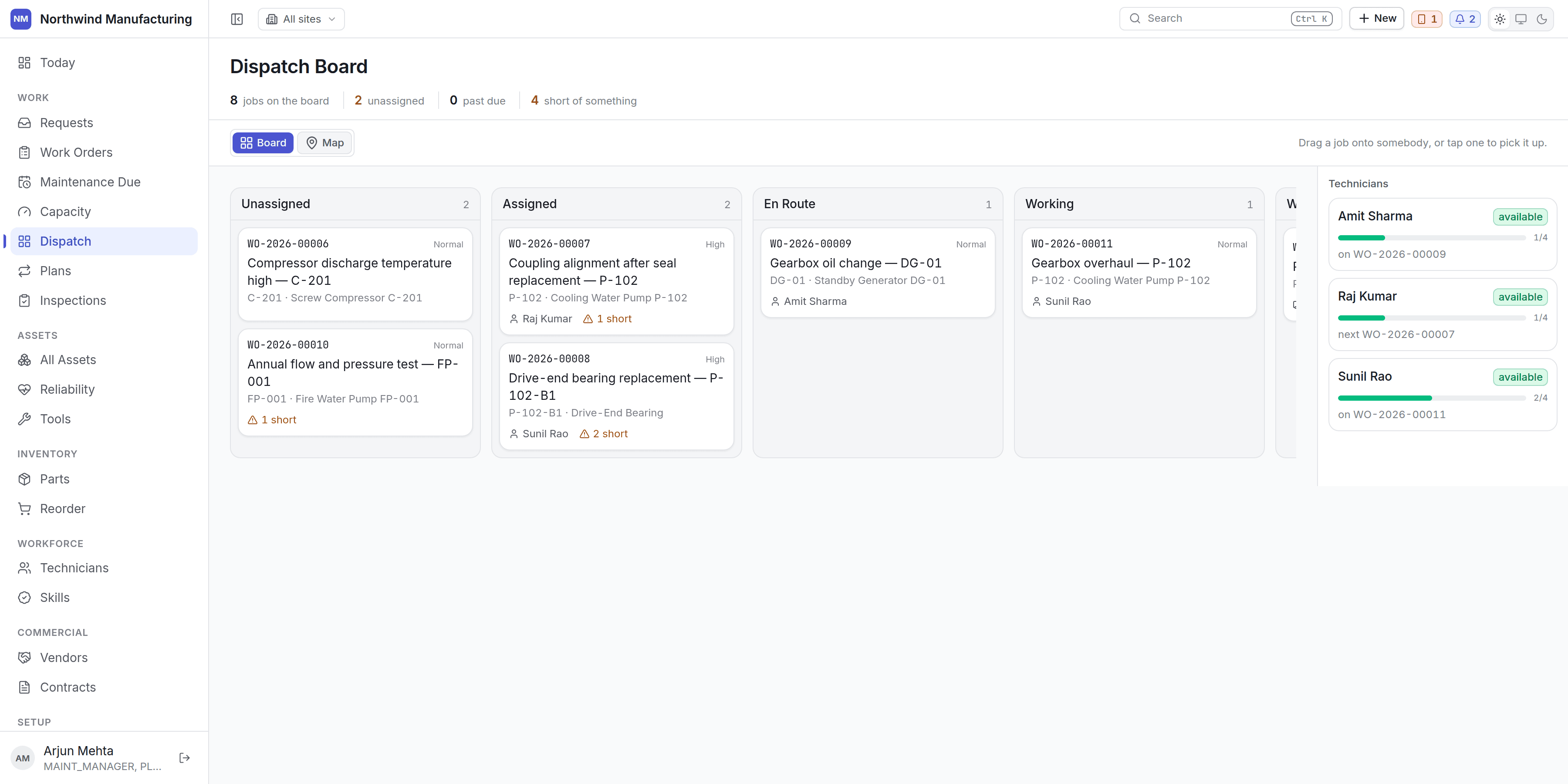 Dropping does not assign. It shows you what *would* happen — travel time and arrival, both
service-level promises, skills, certification, parts, tools, double bookings and workload —
and then you decide.
More: [the dispatch board](/work/dispatch).
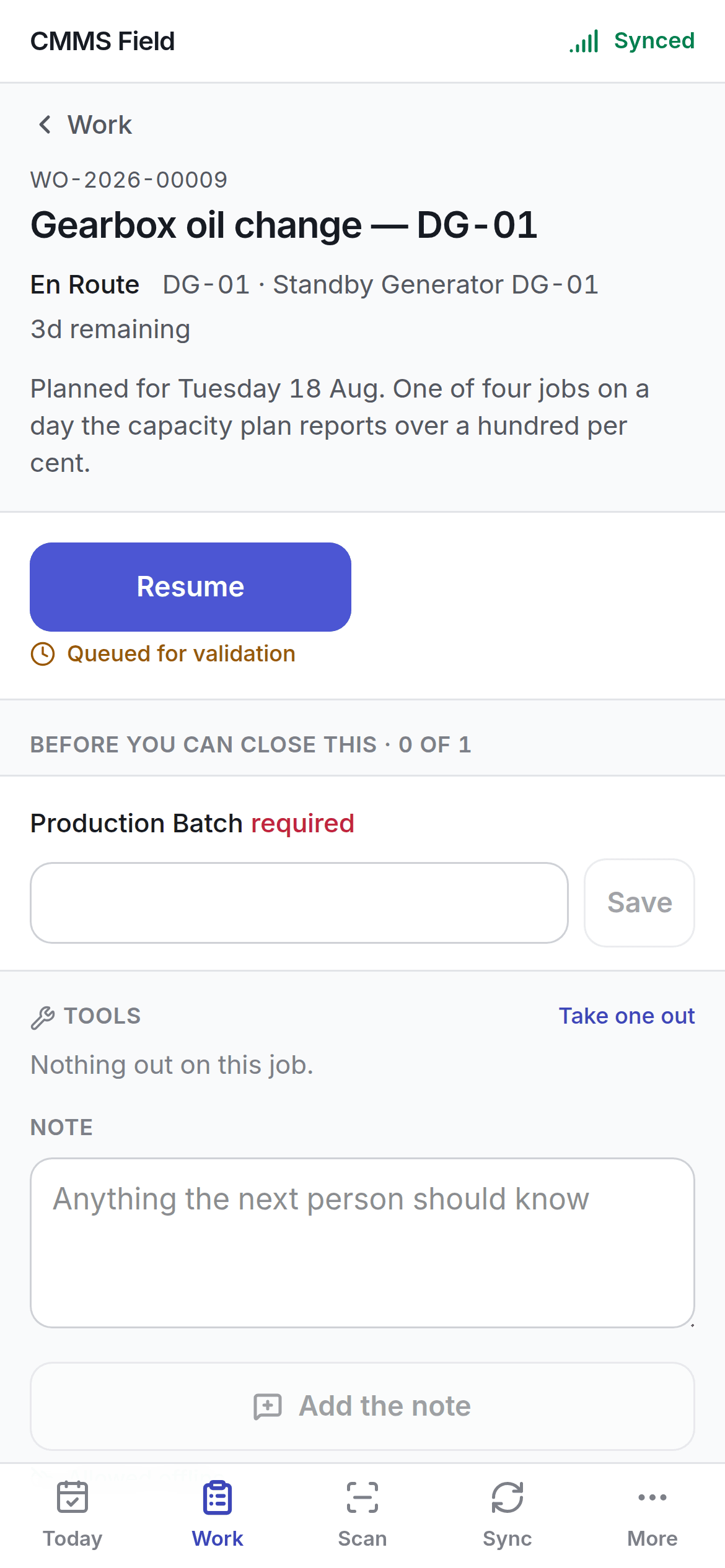
The technician picks the job up on the [field app](/field/overview), works through it at the
machine, and records hours, parts and readings as they go — offline if there is no signal.
Dropping does not assign. It shows you what *would* happen — travel time and arrival, both
service-level promises, skills, certification, parts, tools, double bookings and workload —
and then you decide.
More: [the dispatch board](/work/dispatch).
The technician picks the job up on the [field app](/field/overview), works through it at the
machine, and records hours, parts and readings as they go — offline if there is no signal.
 When the work is finished the job reaches **Completed**, and closing it records the resolution.
A closed job is what the [reliability](/assets/reliability) figures are computed from.
The full state list: [the work order lifecycle](/work/lifecycle).
## Where to go next
The vocabulary — assets, requests, orders, plans, requirements, entitlements, scope.
Build a plan so work raises itself instead of waiting for a breakdown.
The register, the hierarchy, and what a good asset record carries.
Sites, people, roles, statuses and the fields your plant tracks.
## Related topics
- [Ways to sign in](/setup/sign-in-methods.md)
- [Inside a vendor](/commercial/vendor-detail.md)
- [Finding your way around](/get-started/navigating.md)
- [Entitlements and claims](/commercial/entitlements.md)
- [Creating an organisation](/setup/sign-up.md)
When the work is finished the job reaches **Completed**, and closing it records the resolution.
A closed job is what the [reliability](/assets/reliability) figures are computed from.
The full state list: [the work order lifecycle](/work/lifecycle).
## Where to go next
The vocabulary — assets, requests, orders, plans, requirements, entitlements, scope.
Build a plan so work raises itself instead of waiting for a breakdown.
The register, the hierarchy, and what a good asset record carries.
Sites, people, roles, statuses and the fields your plant tracks.
## Related topics
- [Ways to sign in](/setup/sign-in-methods.md)
- [Inside a vendor](/commercial/vendor-detail.md)
- [Finding your way around](/get-started/navigating.md)
- [Entitlements and claims](/commercial/entitlements.md)
- [Creating an organisation](/setup/sign-up.md)