> ## Documentation Index
> Fetch the complete documentation index at: https://docs.assetinfinity.ai/llms.txt
> Use this file to discover all available pages before exploring further.
# The dispatch board
> Assigning work by dragging it onto a technician, with every check shown before you commit.
Where the day gets allocated. Jobs in columns, technicians in a rail, and a drag between them.
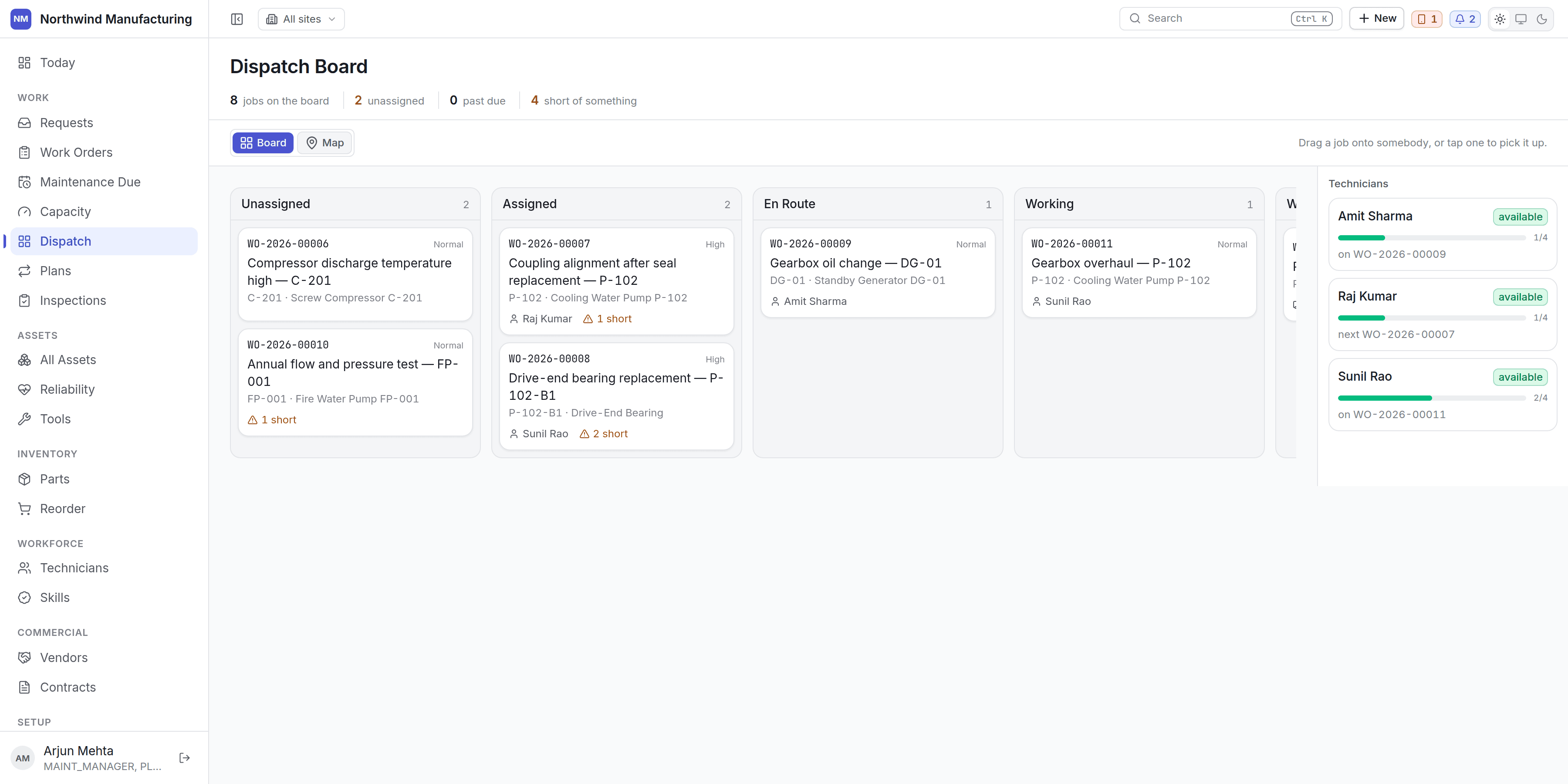 ## Two modes over one set of jobs
* **Board** — a kanban of where every job has got to.
* **Map** — where everything actually is.
The **technician rail** stays on the right in both, because it is what the board is for. On the map,
the pins are drop targets too, so the same gesture works either way.
## The columns
The columns come from your organisation's state model, not from a fixed list. Travelling states get
the travel column; anything in the on-hold category gets the waiting column. Rename `EN_ROUTE` and
the column keeps working.
## The summary line
Jobs on the board, how many are unassigned, how many are past due, and how many are **short of
something** — that last one is the readiness check, aggregated. A job card carries a warning and a
count when it is short.
## The technician rail
Each technician shows:
* Whether they are **available** right now — from the roster, shifts, windows and leave together.
* Their **load** — jobs on today against capacity.
* What they are on now, and what is next.
## Dropping a job does not assign it
This is the important part. Drag a job onto somebody and the board asks what *would* happen, then
shows you:
| Check | What you are told |
| ------------------ | ------------------------------------------------------------ |
| **Travel** | Distance, driving time, and what time they would arrive |
| **Service level** | Whether both the response and resolution promises still hold |
| **Skills** | Whether they hold what the job requires |
| **Certification** | Whether theirs is current — an expired ticket is a stop |
| **Parts** | Whether the parts are in stock at the right store |
| **Tools** | Whether the instruments are free, usable and in calibration |
| **Double booking** | Whether this clashes with something already on them |
| **Workload** | What this does to their day |
| **Site calendar** | Whether the site is working then |
Then you decide.
A board that assigned on drop would be a board people are frightened to touch, and every check it
silently passed would be one nobody was shown. The preview is the feature.
## Assigning anyway
Checks are advice, not locks. You can assign over a warning — sometimes the part is arriving at ten
and the job starts at eleven. What the board guarantees is that you were told.
## Picking a job up
On a touchscreen, tap a job to pick it up and tap a technician to drop it. The same preview appears.
## Unassigning
Drag a job off a technician, or use **Unassign** on the job itself. It returns to the unassigned
column.
## What this screen is not
Dispatch is today. For whether the *week* fits — technician hours against what is due — use the
[capacity plan](/work/capacity). The two are deliberately separate: the plan says whether the week
can absorb the load, the board says who is on what right now.
## Related topics
- [Inside a work order](/work/work-order-detail.md)
- [Inside a technician](/workforce/technician-detail.md)
- [What this system does](/introduction.md)
- [Technicians](/workforce/technicians.md)
- [Your first hour](/quickstart.md)
## Two modes over one set of jobs
* **Board** — a kanban of where every job has got to.
* **Map** — where everything actually is.
The **technician rail** stays on the right in both, because it is what the board is for. On the map,
the pins are drop targets too, so the same gesture works either way.
## The columns
The columns come from your organisation's state model, not from a fixed list. Travelling states get
the travel column; anything in the on-hold category gets the waiting column. Rename `EN_ROUTE` and
the column keeps working.
## The summary line
Jobs on the board, how many are unassigned, how many are past due, and how many are **short of
something** — that last one is the readiness check, aggregated. A job card carries a warning and a
count when it is short.
## The technician rail
Each technician shows:
* Whether they are **available** right now — from the roster, shifts, windows and leave together.
* Their **load** — jobs on today against capacity.
* What they are on now, and what is next.
## Dropping a job does not assign it
This is the important part. Drag a job onto somebody and the board asks what *would* happen, then
shows you:
| Check | What you are told |
| ------------------ | ------------------------------------------------------------ |
| **Travel** | Distance, driving time, and what time they would arrive |
| **Service level** | Whether both the response and resolution promises still hold |
| **Skills** | Whether they hold what the job requires |
| **Certification** | Whether theirs is current — an expired ticket is a stop |
| **Parts** | Whether the parts are in stock at the right store |
| **Tools** | Whether the instruments are free, usable and in calibration |
| **Double booking** | Whether this clashes with something already on them |
| **Workload** | What this does to their day |
| **Site calendar** | Whether the site is working then |
Then you decide.
A board that assigned on drop would be a board people are frightened to touch, and every check it
silently passed would be one nobody was shown. The preview is the feature.
## Assigning anyway
Checks are advice, not locks. You can assign over a warning — sometimes the part is arriving at ten
and the job starts at eleven. What the board guarantees is that you were told.
## Picking a job up
On a touchscreen, tap a job to pick it up and tap a technician to drop it. The same preview appears.
## Unassigning
Drag a job off a technician, or use **Unassign** on the job itself. It returns to the unassigned
column.
## What this screen is not
Dispatch is today. For whether the *week* fits — technician hours against what is due — use the
[capacity plan](/work/capacity). The two are deliberately separate: the plan says whether the week
can absorb the load, the board says who is on what right now.
## Related topics
- [Inside a work order](/work/work-order-detail.md)
- [Inside a technician](/workforce/technician-detail.md)
- [What this system does](/introduction.md)
- [Technicians](/workforce/technicians.md)
- [Your first hour](/quickstart.md)