> ## Documentation Index
> Fetch the complete documentation index at: https://docs.assetinfinity.ai/llms.txt
> Use this file to discover all available pages before exploring further.
# Work requests
> The inbox of reported faults, and how triage turns a report into a job or closes it.
A work request is somebody telling you something needs attention. It is not yet a job — triage
decides that.
 ## Why requests are separate from jobs
A request keeps the reporter's own words. "The pump is leaking, floor is wet" is evidence; the job
that follows is somebody's interpretation of it. Keeping both means you can go back and check what
was actually reported.
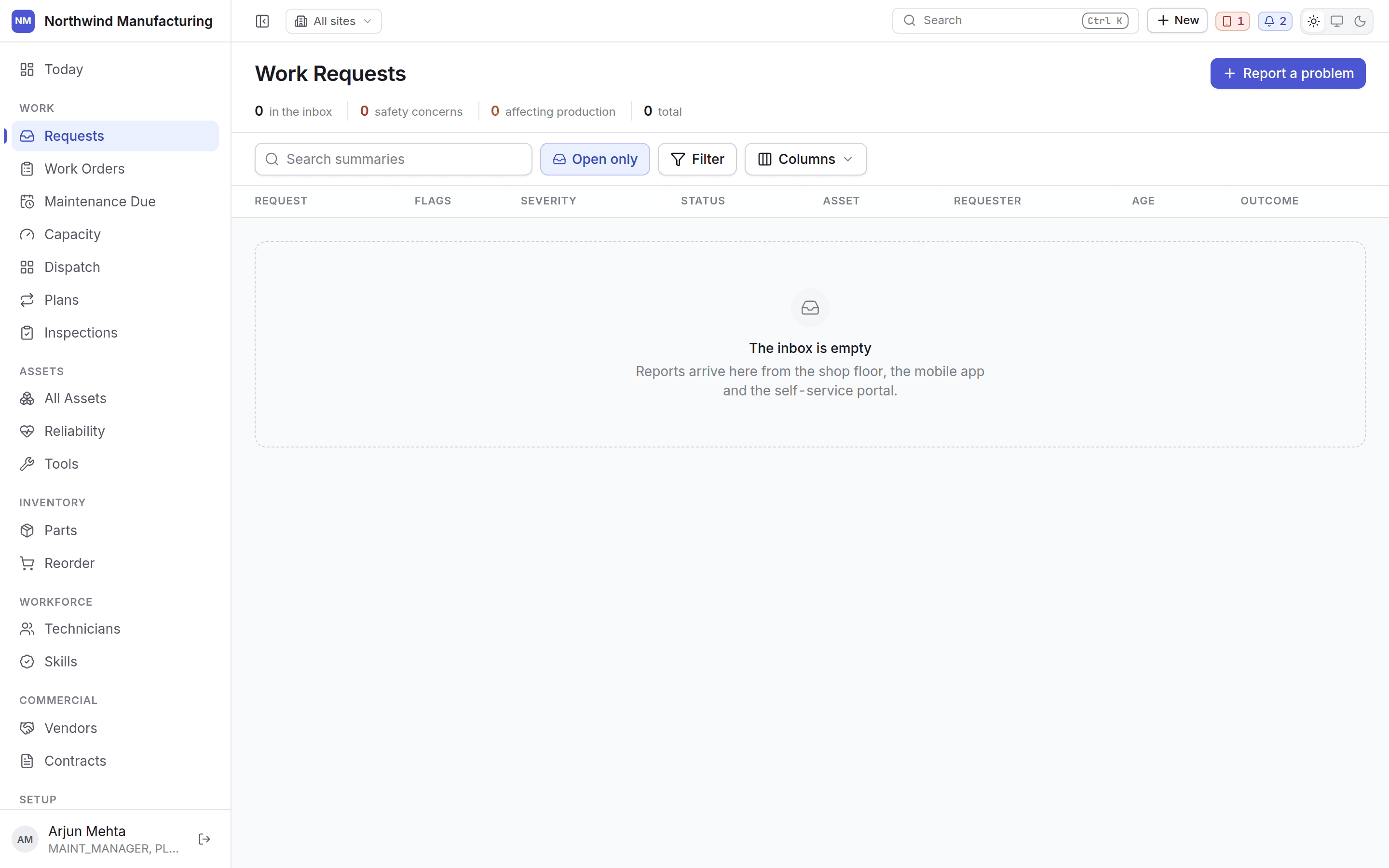
## The inbox
Triage is a queue you work through, so the request opens in a **panel beside the list** rather than
on its own screen. A planner clearing twenty reports on a Monday morning should not press Back
twenty times.
Each row carries who reported it, when, against which asset, and how urgent they said it was.
## Triaging
Select a request and act on it from the panel.
The request becomes a job. You are taken to the new work order to fill in what triage decided —
type, priority, assignment.
You can convert straight from **Submitted** without stepping through triage first. A planner
reading "the pump is leaking, floor is wet" does not need to move it through two ceremonial
states before acting.
Moves the request to **In Triage** — the deliberate path, for requests that warrant thinking
about. Useful when someone else will pick it up, because the state says it is being looked at.
Marks a triaged request as worth doing, before anyone converts it. Useful where approving and
converting are different people's jobs.
Closes the request without a job. Rejection is a recorded outcome with a reason, not a delete —
the reporter's evidence survives.
For a request that has been overtaken — the fault cleared, or somebody else already raised it.
The buttons you see come from your organisation's own request lifecycle. A missing **Reject**
means your state model does not allow that move from the state the request is in. See
[statuses and transitions](/config/statuses).
## The default lifecycle
| Status | Category | What it means |
| --------------------------- | --------- | ------------------------------- |
| **Submitted** | Open | Reported, nobody has looked yet |
| **In Triage** | Open | Being assessed |
| **Approved** | Open | Worth doing, not yet a job |
| **Converted to Work Order** | Closed | A job exists — terminal |
| **Rejected** | Rejected | Not worth doing — terminal |
| **Cancelled** | Cancelled | Overtaken — terminal |
Allowed moves:
```text theme={null}
Submitted ─┬─→ In Triage ─┬─→ Approved ──→ Converted
│ ├─→ Converted
│ ├─→ Rejected
│ └─→ Cancelled
├─→ Converted (triage on sight)
├─→ Rejected (reject on sight)
└─→ Cancelled
```
## Raising a request
Use **New → Create Work Request** in the header, or the **New** button on this screen. A request
needs the asset or location it concerns and a description of what is wrong. Everything else is
triage's job.
Anyone with the **Requester** role can raise requests and see their own — which is the point of the
role. They cannot see the work orders that follow.
## Where requests come from
Requests can be configured with **sources** — walk-up, phone, email, the operator on the line — so
you can tell later which channel a fault arrived through. Configure the list under
[work settings](/config/work).
## Related topics
- [Core concepts](/core-concepts.md)
- [Work settings](/config/work.md)
- [The work order list](/work/work-orders.md)
- [Your first hour](/quickstart.md)
- [What this system does](/introduction.md)
## Why requests are separate from jobs
A request keeps the reporter's own words. "The pump is leaking, floor is wet" is evidence; the job
that follows is somebody's interpretation of it. Keeping both means you can go back and check what
was actually reported.
## The inbox
Triage is a queue you work through, so the request opens in a **panel beside the list** rather than
on its own screen. A planner clearing twenty reports on a Monday morning should not press Back
twenty times.
Each row carries who reported it, when, against which asset, and how urgent they said it was.
## Triaging
Select a request and act on it from the panel.
The request becomes a job. You are taken to the new work order to fill in what triage decided —
type, priority, assignment.
You can convert straight from **Submitted** without stepping through triage first. A planner
reading "the pump is leaking, floor is wet" does not need to move it through two ceremonial
states before acting.
Moves the request to **In Triage** — the deliberate path, for requests that warrant thinking
about. Useful when someone else will pick it up, because the state says it is being looked at.
Marks a triaged request as worth doing, before anyone converts it. Useful where approving and
converting are different people's jobs.
Closes the request without a job. Rejection is a recorded outcome with a reason, not a delete —
the reporter's evidence survives.
For a request that has been overtaken — the fault cleared, or somebody else already raised it.
The buttons you see come from your organisation's own request lifecycle. A missing **Reject**
means your state model does not allow that move from the state the request is in. See
[statuses and transitions](/config/statuses).
## The default lifecycle
| Status | Category | What it means |
| --------------------------- | --------- | ------------------------------- |
| **Submitted** | Open | Reported, nobody has looked yet |
| **In Triage** | Open | Being assessed |
| **Approved** | Open | Worth doing, not yet a job |
| **Converted to Work Order** | Closed | A job exists — terminal |
| **Rejected** | Rejected | Not worth doing — terminal |
| **Cancelled** | Cancelled | Overtaken — terminal |
Allowed moves:
```text theme={null}
Submitted ─┬─→ In Triage ─┬─→ Approved ──→ Converted
│ ├─→ Converted
│ ├─→ Rejected
│ └─→ Cancelled
├─→ Converted (triage on sight)
├─→ Rejected (reject on sight)
└─→ Cancelled
```
## Raising a request
Use **New → Create Work Request** in the header, or the **New** button on this screen. A request
needs the asset or location it concerns and a description of what is wrong. Everything else is
triage's job.
Anyone with the **Requester** role can raise requests and see their own — which is the point of the
role. They cannot see the work orders that follow.
## Where requests come from
Requests can be configured with **sources** — walk-up, phone, email, the operator on the line — so
you can tell later which channel a fault arrived through. Configure the list under
[work settings](/config/work).
## Related topics
- [Core concepts](/core-concepts.md)
- [Work settings](/config/work.md)
- [The work order list](/work/work-orders.md)
- [Your first hour](/quickstart.md)
- [What this system does](/introduction.md)