> ## Documentation Index
> Fetch the complete documentation index at: https://docs.assetinfinity.ai/llms.txt
> Use this file to discover all available pages before exploring further.
# Inside a work order
> Every tab on the job — readiness, who and when, best fit, tasks, parts, tools, labour, travel, warranty, costs, files, copilot and activity.
The most important screen in the product. Everything about one job.
 ## The header
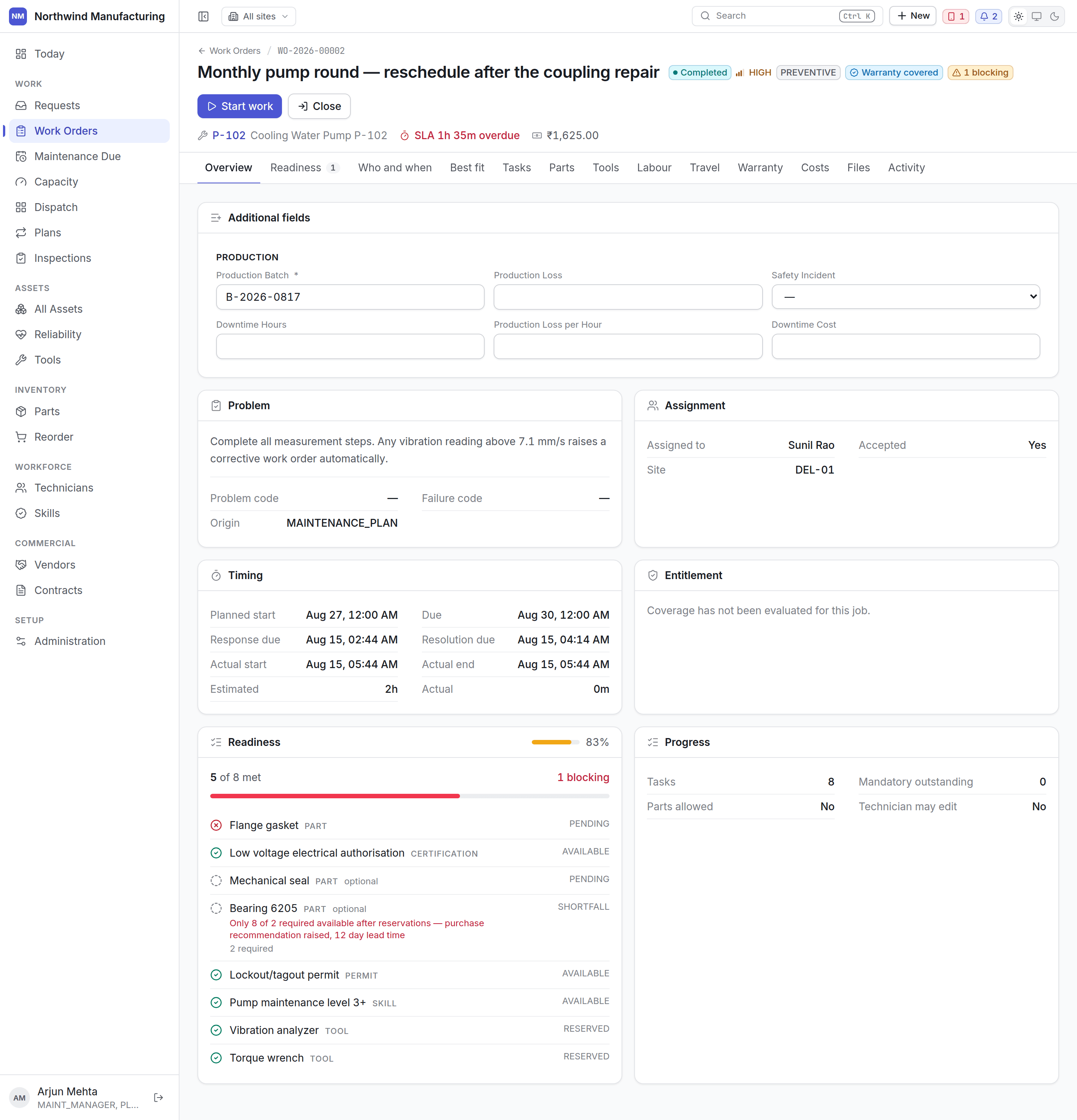
The number, the title, the asset and where it is. Beneath: the status, the priority, the type, who
it is on and when it is due.
The **action bar** offers the moves your organisation's state model allows from the state the job is
in right now — Assign, Accept, Start work, Put on hold, Wait for parts, Complete, Close, Cancel.
A button you expected and cannot see means your configuration does not allow that move from here.
See [the lifecycle](/work/lifecycle).
## Tabs
The description, the asset, the requester, the dates, the service level, and any custom fields
your plant has added to work orders.
**Can this job actually be done?** The tab carries a count of what is blocking it.
## The header
The number, the title, the asset and where it is. Beneath: the status, the priority, the type, who
it is on and when it is due.
The **action bar** offers the moves your organisation's state model allows from the state the job is
in right now — Assign, Accept, Start work, Put on hold, Wait for parts, Complete, Close, Cancel.
A button you expected and cannot see means your configuration does not allow that move from here.
See [the lifecycle](/work/lifecycle).
## Tabs
The description, the asset, the requester, the dates, the service level, and any custom fields
your plant has added to work orders.
**Can this job actually be done?** The tab carries a count of what is blocking it.
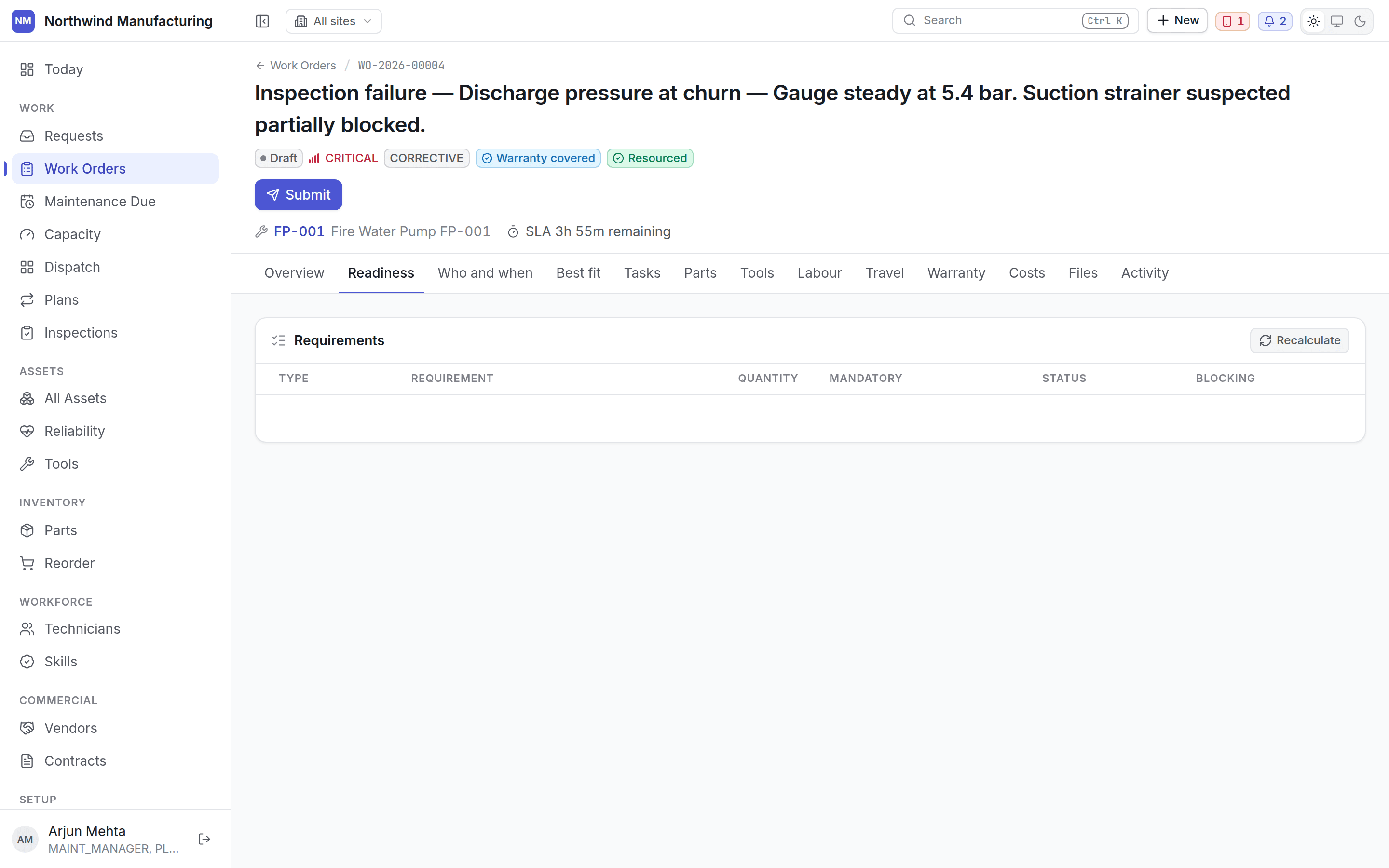 It lists every requirement and whether it is satisfied: parts in stock or short, tools available
or out or overdue for calibration, skills and certifications somebody available holds, vendors
confirmed or not.
Readiness is not a status. A job can be **Assigned** and not ready — which is exactly the
situation worth seeing before somebody is sent.
Assignment and scheduling. Who is on it, which team, the planned window, and the estimated
duration. Assign more than one person where a job needs a pair.
The routing recommendation: who the system would send, and **why**. Travel time, skills held,
certifications, current workload, site calendar and vendor entitlement each contribute, and the
reasoning is kept rather than reduced to a score.
It is a recommendation. You assign.
The checklist. Steps in order, which are mandatory, and which have been done. Steps that require
evidence — a photograph, a signature, a measurement — say so, and the work order cannot be
closed until the mandatory ones are complete.
A step that raises a corrective work order if it fails says so before anybody answers it. When
one does fail, the work order it raised is named beside the failure, so a corrective job never
appears on the board with no visible cause.
Technicians work through this on the [field app](/field/job).
What the job needs and what has actually been issued against it.
It lists every requirement and whether it is satisfied: parts in stock or short, tools available
or out or overdue for calibration, skills and certifications somebody available holds, vendors
confirmed or not.
Readiness is not a status. A job can be **Assigned** and not ready — which is exactly the
situation worth seeing before somebody is sent.
Assignment and scheduling. Who is on it, which team, the planned window, and the estimated
duration. Assign more than one person where a job needs a pair.
The routing recommendation: who the system would send, and **why**. Travel time, skills held,
certifications, current workload, site calendar and vendor entitlement each contribute, and the
reasoning is kept rather than reduced to a score.
It is a recommendation. You assign.
The checklist. Steps in order, which are mandatory, and which have been done. Steps that require
evidence — a photograph, a signature, a measurement — say so, and the work order cannot be
closed until the mandatory ones are complete.
A step that raises a corrective work order if it fails says so before anybody answers it. When
one does fail, the work order it raised is named beside the failure, so a corrective job never
appears on the board with no visible cause.
Technicians work through this on the [field app](/field/job).
What the job needs and what has actually been issued against it.
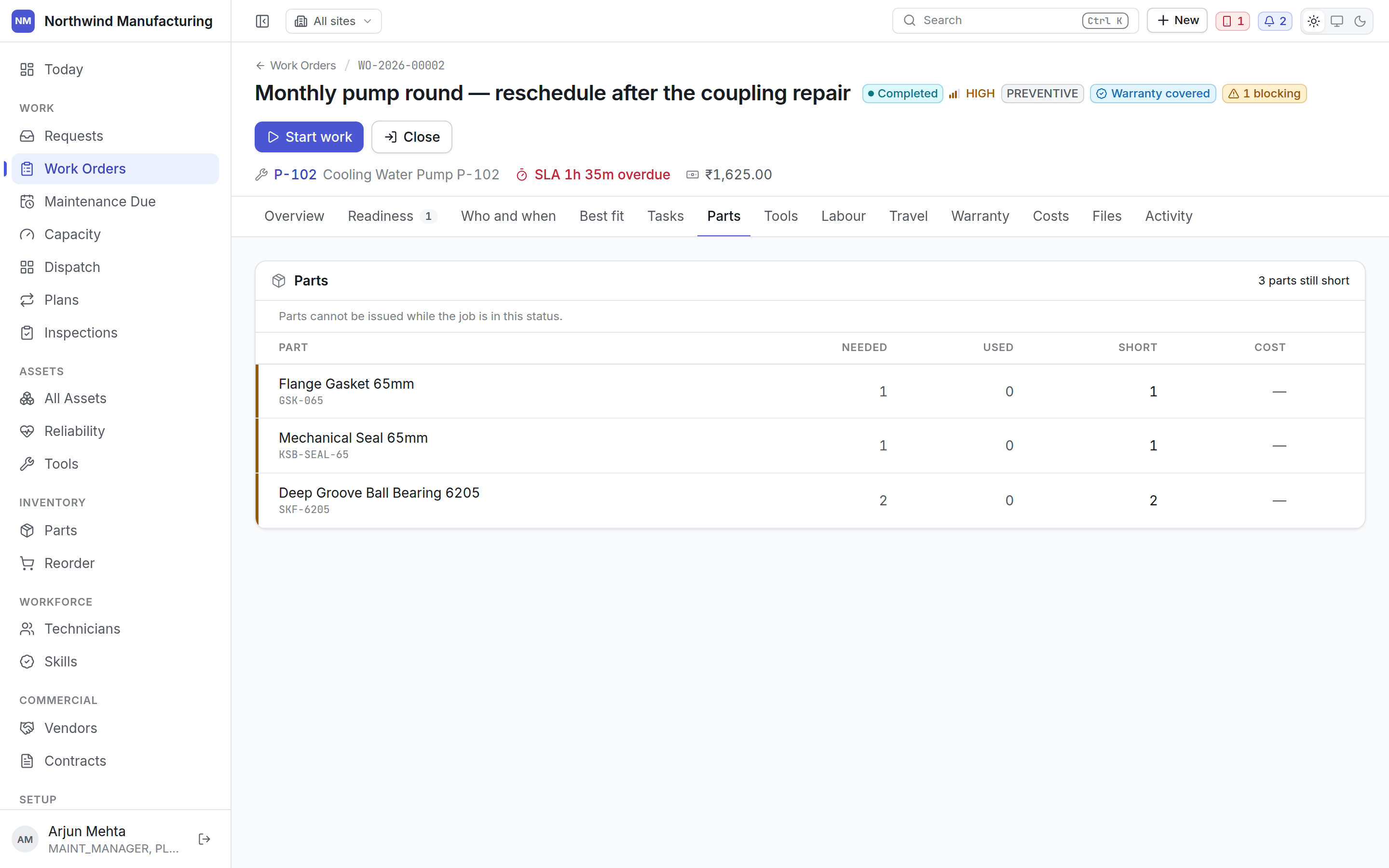 Reserved parts are held for this job so another cannot take them. Consumption is what really
left the store — that is what costs and stock levels are computed from.
Whether parts may be consumed at all depends on the status the job is in; that is a flag on your
[state model](/config/statuses), not a rule in this screen.
Instruments the job needs, and which are currently out to it. A tool can be unavailable by
status, unusable by condition, or **out of calibration** — the last is the worst, because the
instrument still works and its readings are no longer evidence.
Hours booked against the job, by person, with the rate that applies.
Reserved parts are held for this job so another cannot take them. Consumption is what really
left the store — that is what costs and stock levels are computed from.
Whether parts may be consumed at all depends on the status the job is in; that is a flag on your
[state model](/config/statuses), not a rule in this screen.
Instruments the job needs, and which are currently out to it. A tool can be unavailable by
status, unusable by condition, or **out of calibration** — the last is the worst, because the
instrument still works and its readings are no longer evidence.
Hours booked against the job, by person, with the rate that applies.
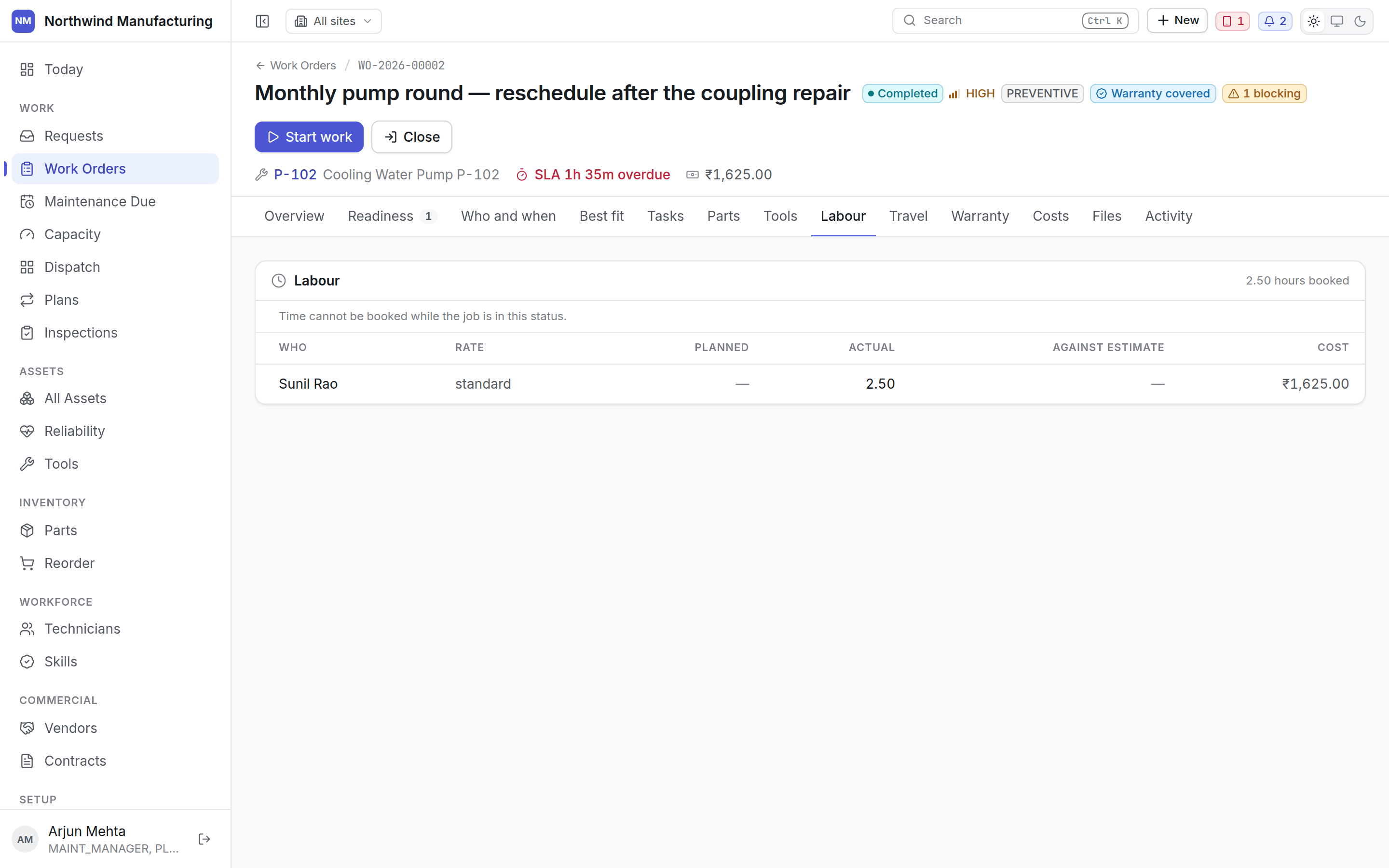 Technicians book their own hours from the handset; supervisors can correct them here.
The journey to the job — distance and time — where it was recorded. It feeds the routing
estimates the dispatch board shows.
Whether this repair is covered, by which agreement, and on what evidence. The panel reads the
**recorded** entitlement decision rather than deciding again, so what you see is what was
concluded at the time.
See [entitlements and claims](/commercial/entitlements).
Labour, parts, tools, travel and vendor charges, totalled. Committed cost is what is on the job
now; actual cost is what has been consumed.
Photographs, drawings, reports and signatures. The tab carries the count. Evidence captured at
the machine on the handset arrives here.
Ask for a classification, a diagnosis, or help with the job in front of you. What comes back is
a proposal: nothing is written to the work order until somebody accepts it, and agreeing with a
suggestion without applying it is a separate choice.
Empty until your organisation has agreed to switch the copilot on. See
[Copilot](/analytics/copilot).
Everything that has happened to the job in order — every state change, who made it and when,
plus comments.
Technicians book their own hours from the handset; supervisors can correct them here.
The journey to the job — distance and time — where it was recorded. It feeds the routing
estimates the dispatch board shows.
Whether this repair is covered, by which agreement, and on what evidence. The panel reads the
**recorded** entitlement decision rather than deciding again, so what you see is what was
concluded at the time.
See [entitlements and claims](/commercial/entitlements).
Labour, parts, tools, travel and vendor charges, totalled. Committed cost is what is on the job
now; actual cost is what has been consumed.
Photographs, drawings, reports and signatures. The tab carries the count. Evidence captured at
the machine on the handset arrives here.
Ask for a classification, a diagnosis, or help with the job in front of you. What comes back is
a proposal: nothing is written to the work order until somebody accepts it, and agreeing with a
suggestion without applying it is a separate choice.
Empty until your organisation has agreed to switch the copilot on. See
[Copilot](/analytics/copilot).
Everything that has happened to the job in order — every state change, who made it and when,
plus comments.
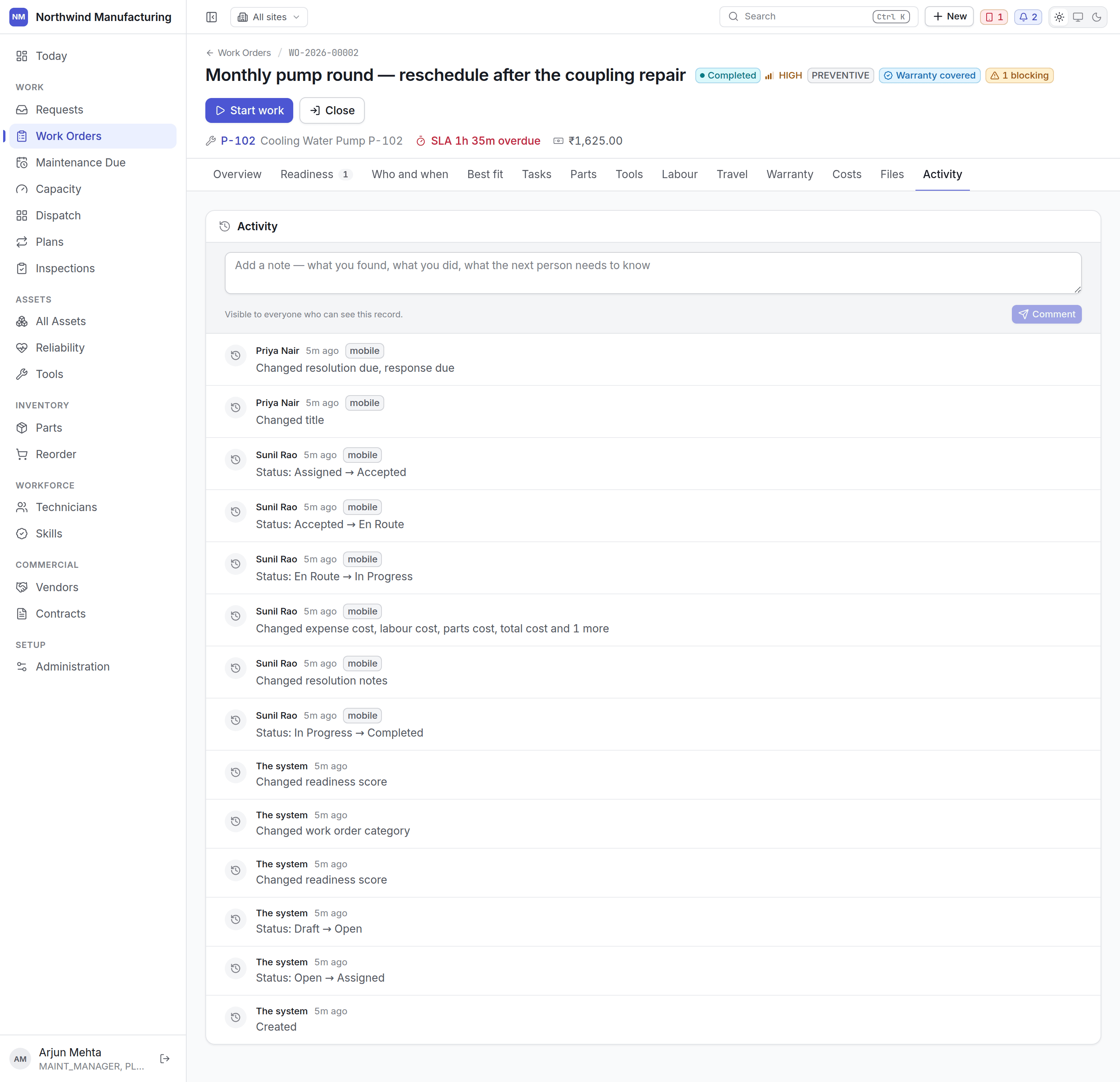 Add a comment here to leave a note for whoever picks the job up next.
The full change record: every field, its old and new value, who changed it and when. Only
visible to roles that carry audit permission — normally administrators and auditors.
## Failures
When a job fixed something that broke, record the **failure** against the asset. That is what
downtime, MTBF and the bad-actor ranking on [Reliability](/assets/reliability) are computed from. A
repair with no failure recorded is a repair the plant learns nothing from.
## Related topics
- [The work order list](/work/work-orders.md)
- [Entitlements and claims](/commercial/entitlements.md)
- [Core concepts](/core-concepts.md)
- [Your first hour](/quickstart.md)
- [Inside a vendor](/commercial/vendor-detail.md)
Add a comment here to leave a note for whoever picks the job up next.
The full change record: every field, its old and new value, who changed it and when. Only
visible to roles that carry audit permission — normally administrators and auditors.
## Failures
When a job fixed something that broke, record the **failure** against the asset. That is what
downtime, MTBF and the bad-actor ranking on [Reliability](/assets/reliability) are computed from. A
repair with no failure recorded is a repair the plant learns nothing from.
## Related topics
- [The work order list](/work/work-orders.md)
- [Entitlements and claims](/commercial/entitlements.md)
- [Core concepts](/core-concepts.md)
- [Your first hour](/quickstart.md)
- [Inside a vendor](/commercial/vendor-detail.md)