

The types
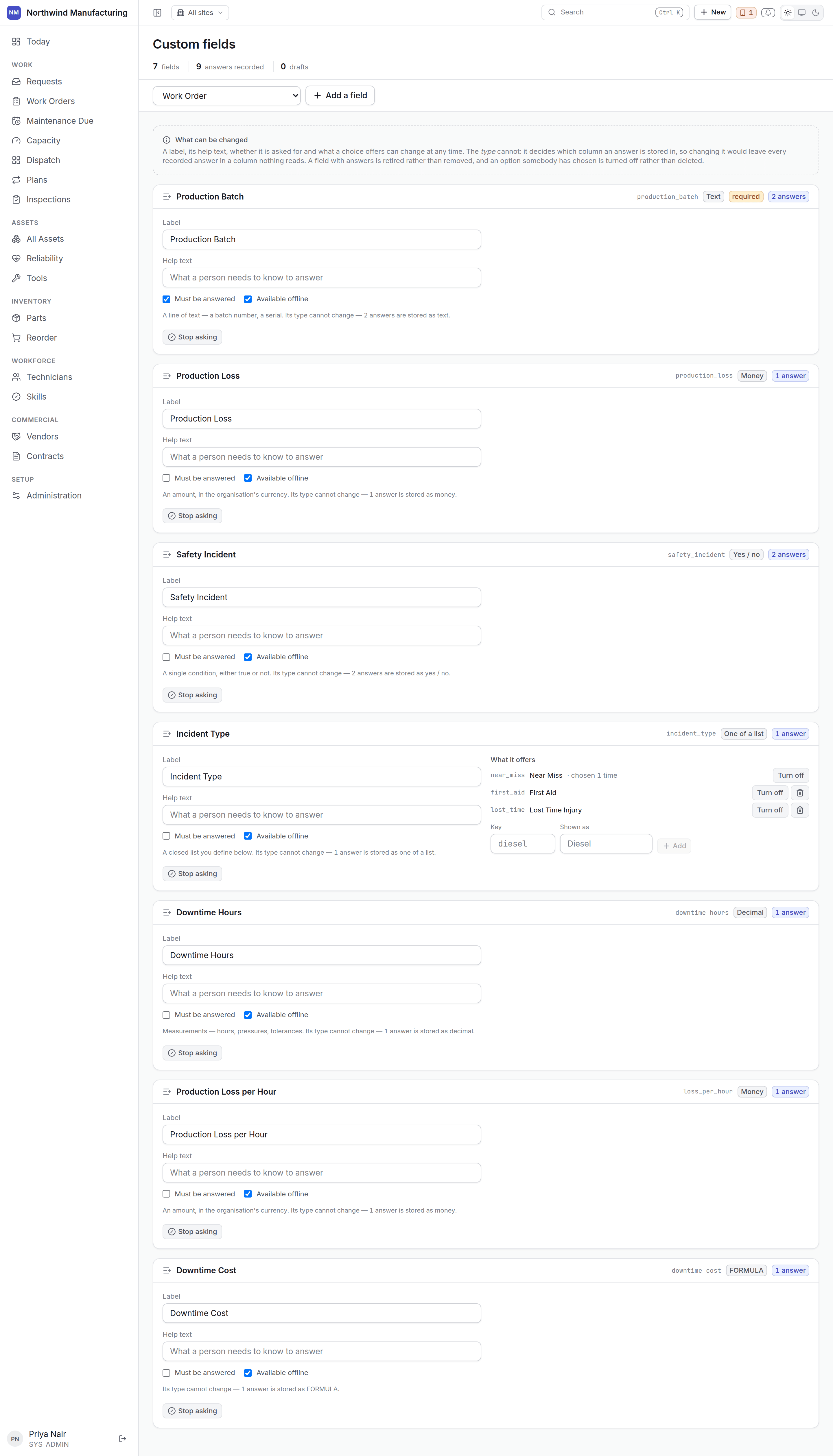
The type is chosen once
This is not a limitation anyone forgot to lift. The type decides which column an answer is stored in — changing it would not convert the answers, it would orphan them in a column nothing reads. So after creation the screen shows the type as a fact rather than a control, and tells you how many answers are stored against it. Everything that is genuinely a decision stays editable: the label, the help text, whether it is required, and what a choice list offers. If you have the type wrong, create a new field and retire the old one. It is a nuisance; silently orphaning a year of answers is worse.Adding a field
1
Choose the record type
Work orders, assets, parts, vendors, contracts, technicians — anything the model allows.
2
Name it and choose its type
The label is what people see. Choose the type carefully — this is the decision you cannot undo.
3
Add help text
One line saying what good input looks like. Worth writing; it is what stops five people entering
a date five ways.
4
Decide whether it is required
A required field must be answered before the record can be saved — and, on a work order, before
the job can be closed.
5
Add the choices, for a list type
Added after the field exists.