

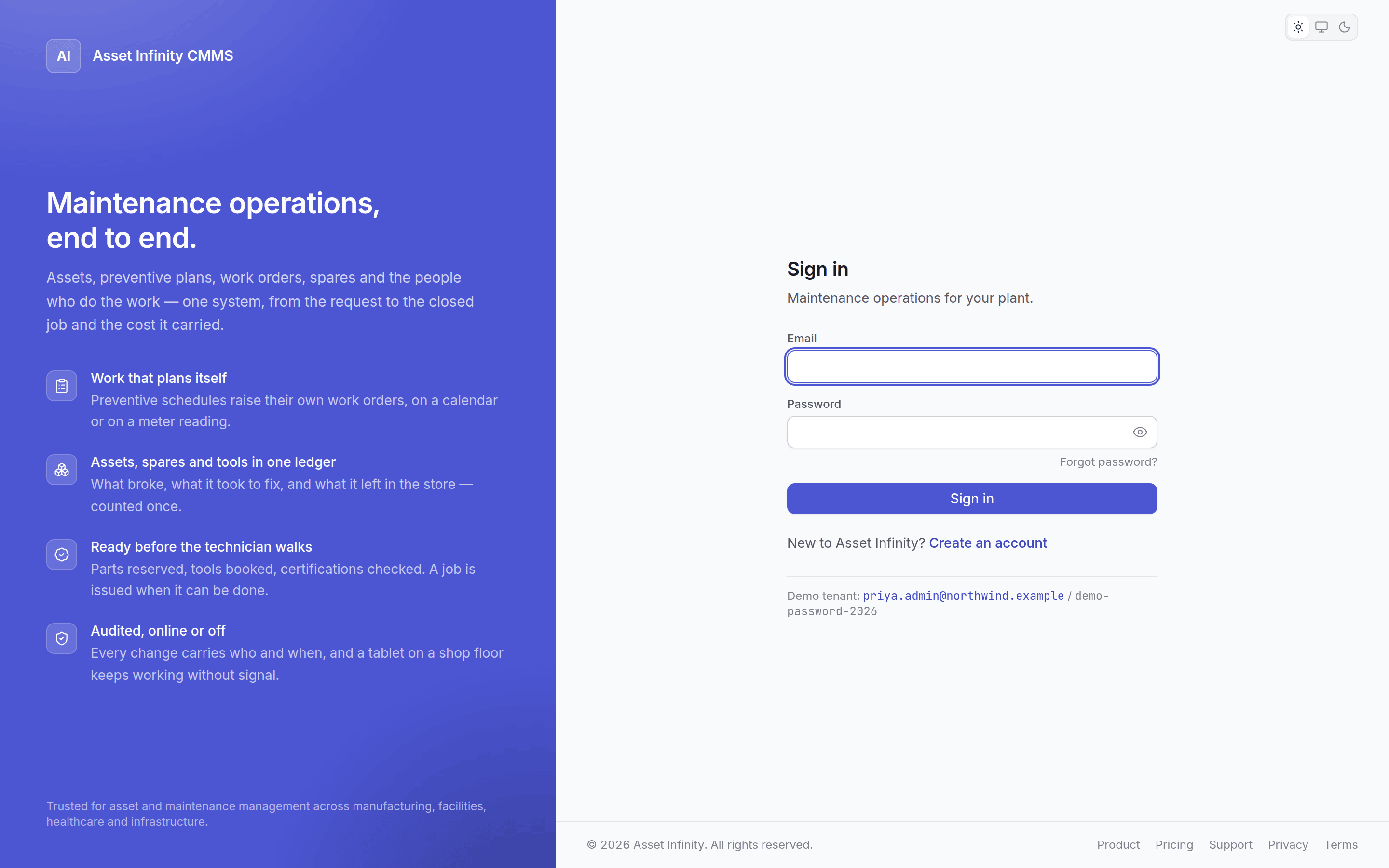
Email and password
The default. Your email is your username.Google and Microsoft
If your organisation has configured a provider, its button appears on the sign-in screen. Configure one and the buttons appear; configure none and the app never mentions them. Signing in with a provider still requires an account here — the provider proves who you are, and your account decides what you may do. Somebody with a valid Google account and no user record cannot get in.First sign-in on an issued password
When an administrator creates your account they set a password, which means somebody other than you knows it. So the first sign-in with an issued password asks you to change it before going any further.Forgotten password
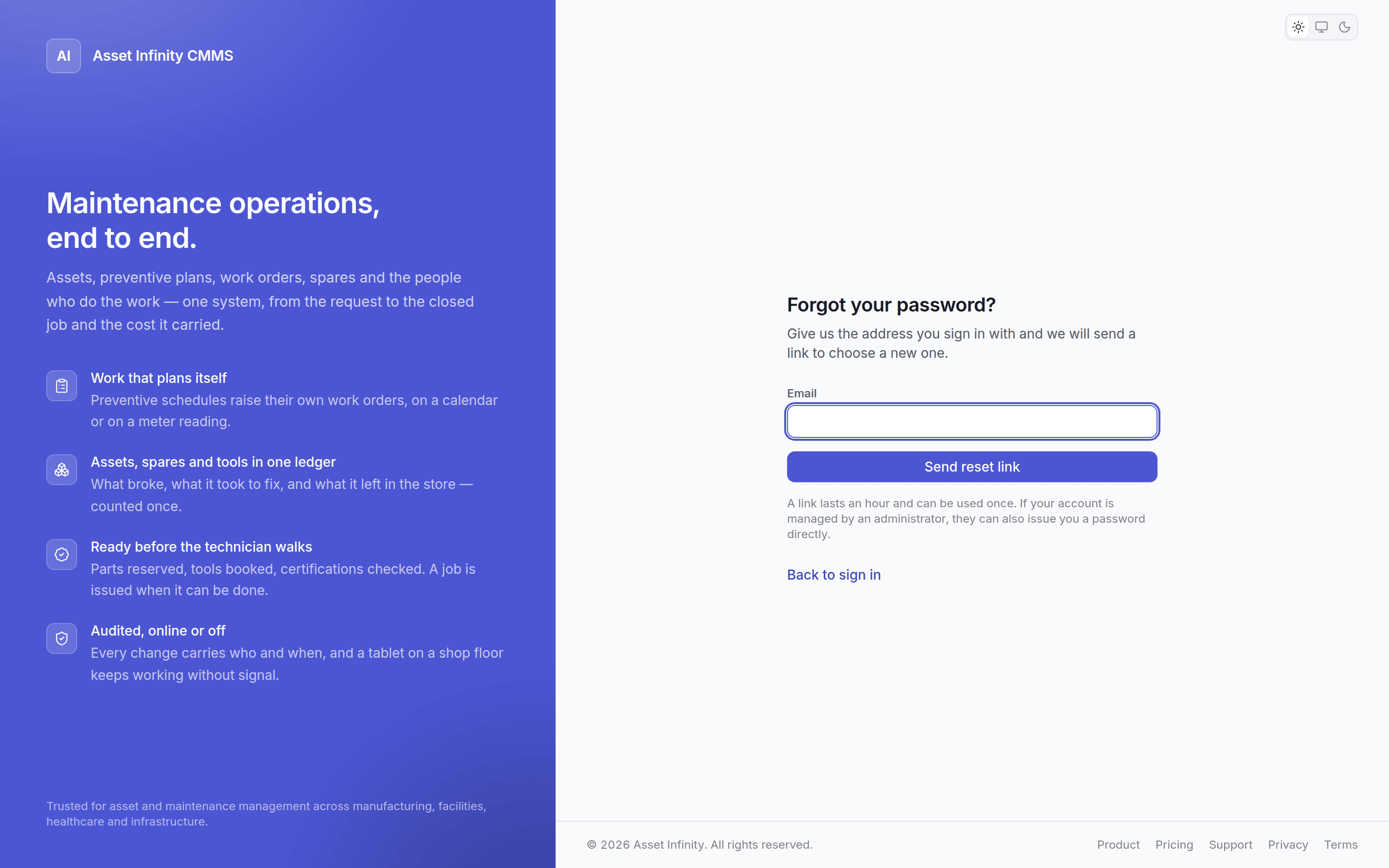
The screen gives the same answer whether or not the address has an account. That is deliberate —
a different answer would tell anyone who asked which of your colleagues have accounts.